Dbmovies
Automatic episodes
Automatic episodes imports the episodes of your TV shows in the background: every TV show you import joins a queue, and its aired episodes are created one season at a time. This page explains how the queue works, each setting, how to follow it and what to do when something goes wrong.
Overview
A TV show can have hundreds of episodes. Importing them by hand, season by season, takes time. With Automatic episodes, you import the TV show and its episodes arrive on their own: the TV show joins a queue, and a task that runs in the background creates its aired episodes, one season at a time.
You turn it on and adjust it in Dbmovies › Settings › Data Importer › Automatic episodes, and you follow the queue from the importer.
How it works
- You import a TV show from the importer, with Quick import, from the editor or from a user request. It joins the queue.
- Every minute, a run starts and works for the time you set: 40 seconds by default.
- The run takes the first TV show in the queue and imports it one season at a time, with one request to TMDb per season.
- For each season, it creates the episodes that are missing on your site. If the run runs out of time, the TV show waits half done and the next run goes on from the same season.
- When every season is done, the TV show is Finished and the queue moves to the next one.
The queue only creates episodes. Some episodes are never created:
- Episodes you already have are skipped and not changed. That includes episodes in the trash: if you deleted one, it does not come back.
- Episodes that have not aired: with no date, or with a date in the future.
- Specials (season 0).
Each episode is created the same way as when you import it by hand:
- its title, address and content come from your templates in Titles and content;
- its status is the one in Importers Post Status of Data importer;
- its author is the author of the TV show.
Turn it on
- Go to Dbmovies › Settings › Data Importer › Automatic episodes.
- Turn on Enable automatic episodes.
- Review the settings below and click Save.
From then on, every TV show you import joins the queue. To add the TV shows you already have, see Add the TV shows you already have.
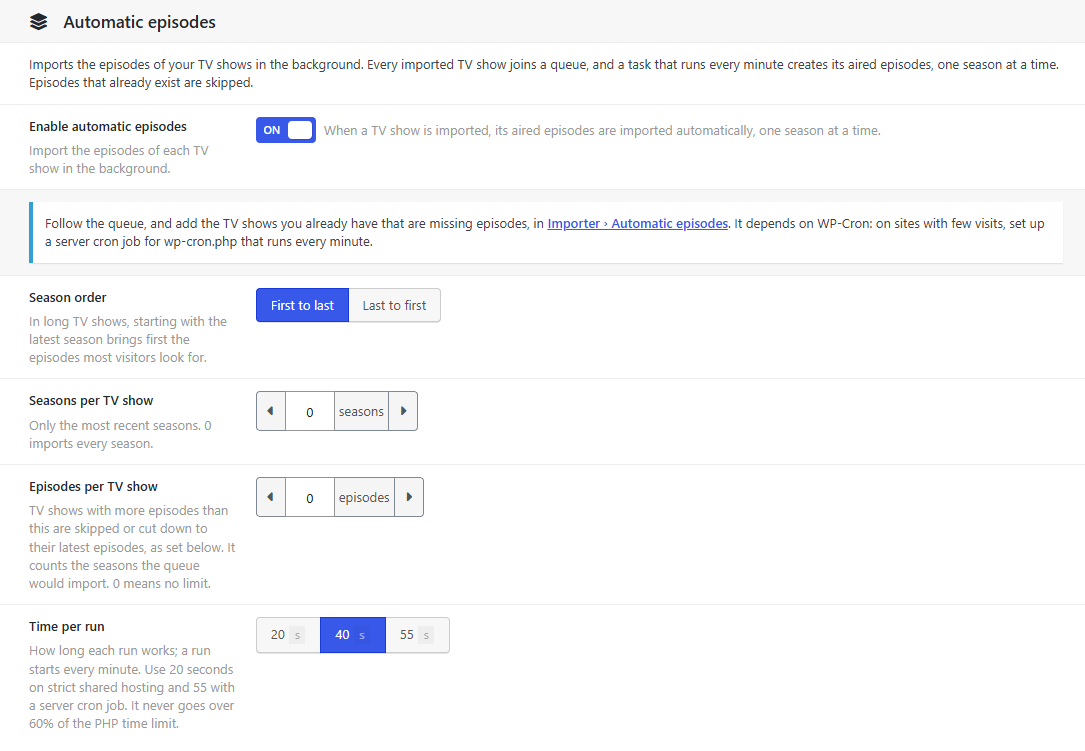
Settings
| Setting | What it does | Default |
|---|---|---|
| Season order | First to last, or Last to first. In long TV shows, starting with the latest season brings first the episodes most visitors look for | First to last |
| Seasons per TV show | Only the most recent seasons. 0 imports every season | 0 |
| Episodes per TV show | A limit of episodes for each TV show. It counts the episodes of the seasons the queue would import. 0 means no limit | 0 |
| Over the limit | What happens with a TV show over the limit. Skip the TV show: it is imported without episodes. Latest episodes only: the queue imports only the most recent ones, up to the limit | Skip the TV show |
| Episode images | As in Import Images, or Never | As in Import Images |
| Time per run | How long each run works: 20, 40 or 55 seconds | 40 seconds |
Limits, with an example
Take a TV show with 10 seasons of 24 episodes, 240 in total:
- Seasons per TV show: 2 imports seasons 9 and 10, 48 episodes.
- Episodes per TV show: 100, with Skip the TV show: the TV show has 240, so the queue skips it. You can still import its episodes by hand with its Seasons button.
- Episodes per TV show: 100, with Latest episodes only: the queue goes back from the last season until it reaches 100. That is seasons 7 to 10, and from season 6 only its last 4 episodes.
- Both together: Seasons per TV show is applied first, then the limit of episodes. With 2 seasons (48 episodes) and a limit of 100, nothing is cut.
Latest episodes only always takes the most recent episodes, whatever the Season order. The order only decides which season goes first.
Episode images
Episode images only appears if Import Images uploads the image of each episode to your server (see Import images).
With As in Import Images, each episode the queue creates downloads its image from TMDb. The image is saved with two smaller copies, and it adds one post and three metadata rows to your database. Each run also creates fewer episodes. Across thousands of episodes, that adds up to several gigabytes.
With Never, episodes still show their image, loaded from your CDN server or straight from TMDb, and nothing is saved on your server. On modest hosting, we recommend it. See Deploy CDN Server for a comparison.
Time per run
- 20 seconds on shared hosting with strict limits.
- 40 seconds, the default, for most sites.
- 55 seconds if you set up a server cron job.
A run never goes over 60% of the PHP time limit of your server, whatever you choose.
Follow the queue
Open the importer (the Dbmovies menu), open the menu next to Meta updater and choose Automatic episodes. A panel opens on the side.
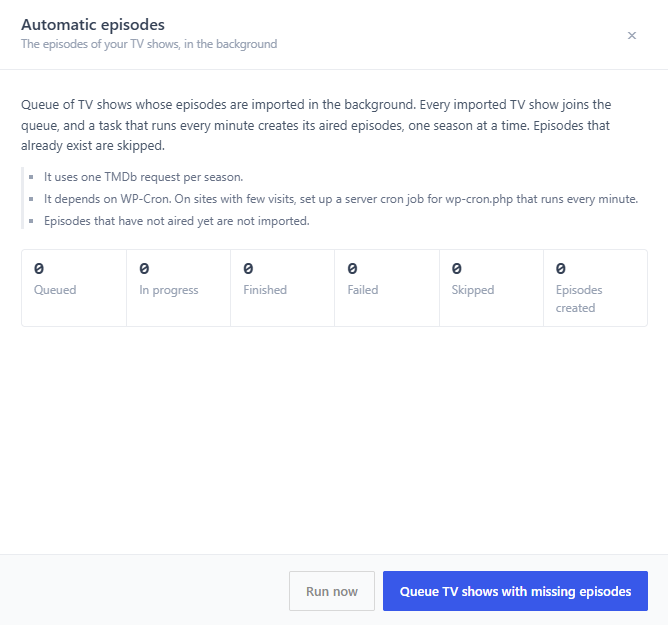
At the top, the panel shows how many TV shows are in each state:
| Counter | Meaning |
|---|---|
| Queued | Waiting for their turn |
| In progress | Half done: the next run goes on with it |
| Finished | All its seasons were imported |
| Failed | It had errors three times. The panel lists it with the last error |
| Skipped | More episodes than your limit, with Skip the TV show. The panel lists it with its number of episodes |
| Episodes created | Episodes the queue created, in total |
Below the counters:
- The TV show in progress, with its season and its place in the list, such as Now: The Office · season 3 (3 of 9).
- The list of the queue, in the order the TV shows will be imported, with up to 50 TV shows. Each one shows how many episodes it has so far and its state:
- Season 3 · 3 of 9: in progress.
- Waiting: it has not started.
- Retrying: it had an error and goes again.
- Retry at 14:30: it had an error and waits until that time.
While the queue is working, the panel refreshes on its own every 15 seconds.
The buttons
| Button | What it does |
|---|---|
| Queue TV shows with missing episodes | Adds to the queue the TV shows of your site that are missing episodes. See below |
| Run now | Runs the queue for up to 20 seconds right away, without waiting for the next minute |
| Retry failed | Puts the failed TV shows back in the queue, from the start |
| Clear finished | Removes the finished TV shows from the list. Their episodes stay |
In the list of TV shows
In TV Shows › All TV Shows, the Seasons column also shows the state of each TV show in the queue, below its button:
- Episodes queued: waiting for its turn.
- Importing episodes · S2: in progress, on season 2.
- Episodes failed: hover over it to see the error.
- Skipped · 240 episodes: over your limit.
When the queue finishes a TV show, the line disappears.
Add the TV shows you already have
The queue receives the TV shows you import from the moment you turn it on. For the ones you already had, click Queue TV shows with missing episodes in the panel.
It looks at every TV show of your site. A TV show joins the queue if one of the seasons the queue would import has fewer episodes on your site than on TMDb. TV shows over your limit, with Skip the TV show, are marked as skipped instead.
TMDb also counts episodes that are announced but have not aired. So a TV show on the air can join the queue even if it only misses those. The queue then checks its seasons, one request each, and finishes without creating anything.
New episodes of a TV show on the air
The queue does not watch your TV shows after it finishes them. When a new episode airs, bring it to your site in one of these ways:
- For a few TV shows: open the seasons manager with the Seasons button and import the latest season.
- For your whole catalog:
- Update your TV shows with the Meta Updater, so your site knows about their new episodes.
- Click Queue TV shows with missing episodes.
When something goes wrong
If TMDb does not answer, the whole queue pauses and resumes on its own. These pauses do not count as errors of the TV show:
| What happened | Pause | The panel shows |
|---|---|---|
| TMDb is limiting requests | 2 minutes | Paused: TMDb is limiting requests. |
| TMDb did not respond, or had an error | 5 minutes | Paused: TMDb did not respond. |
| TMDb rejected your API key | 30 minutes | Paused: TMDb rejected the API key. Check it in the settings. |
Any other error counts as an attempt for that TV show. It goes back to the queue from the start: after 5 minutes the first time, and after 30 minutes the second time. After the third attempt, it is Failed. Fix the cause, then click Retry failed.
If TMDb no longer has a season, the queue skips that season, with no error.
What it needs
- An active license. Without it, the panel shows The queue is waiting for an active license.
- Your TMDb API key, in Data importer. If you use the TMDb proxy, each season uses one request of your daily limit.
- Scheduled tasks that run every minute. WordPress runs them only when someone visits your site. If they have not run for more than 5 minutes, the panel warns you. We recommend a server cron job: see Cron Jobs.
Changing the settings while it runs
- TV shows that have not started use the new settings. That includes the limit of episodes: a TV show over the new limit is skipped when its turn comes.
- A TV show in progress goes on. If its list of seasons changed, it starts again from its first season. The episodes it already created are skipped, so nothing is repeated.
- Turning it off stops the queue. The TV shows stay in it, and the queue goes on when you turn it on again.
If you delete a TV show permanently, it leaves the queue. If you move it to the trash, the queue removes it when its turn comes.
Troubleshooting
| Problem | What to do |
|---|---|
| The queue does not move | Look at the warnings of the panel. Check that Automatic episodes is on, that your license is active and that scheduled tasks run. If it says Paused, wait until the time it shows |
| A TV show is Failed | Read the error in the panel, or hover over Episodes failed in the list of TV shows. Fix it, then click Retry failed |
| Some episodes are missing | They may not have aired yet, they may be in the trash, or they may be specials (season 0). Also check Seasons per TV show and Episodes per TV show |
| A TV show is Skipped | It has more episodes than your limit. Raise the limit, choose Latest episodes only, or import it by hand with its Seasons button |
| It is slow | Set up a server cron job and choose 55 seconds in Time per run. If episodes upload their image, choose Never in Episode images |