Dbmovies
Sign in with Google
Sign in with Google lets your visitors sign in or create an account with their Google account, in one click and without a password. This page explains how to create your Client ID in Google Cloud, each setting, how accounts are matched and what members see in their account.
Overview
With Sign in with Google, the sign-in and sign-up forms of your site show a Continue with Google button. Your visitors sign in with their Google account in one click:
- No password to remember and no verification code to wait for: Google already confirmed their email address.
- New visitors get an account on the spot, if you allow it.
- Members who already have an account with the same email sign in to it.
You set it up in Dbmovies › Settings › Integrations. It is free, and it only needs a Client ID from Google.
What you need
- A Google account to sign in to Google Cloud.
- Your site on HTTPS. Google only accepts secure addresses, except
localhost. - A theme that shows the button. Wovie shows it on the sign-in and sign-up forms.
Create your Client ID
- Go to Google Cloud Console and create a project, or choose one you already have.
- Open APIs & Services › Credentials.
- If Google asks you to configure the consent screen, do it first:
- App name: the name your visitors see when they sign in, usually the name of your site.
- Support email: an address of yours.
- Audience: External.
- Click Create credentials › OAuth client ID, and choose Web application.
- In Authorized JavaScript origins, click Add URI and paste the address of your site exactly as Dbmovies shows it in the settings, such as
https://your-website.com. It includeshttpsand, if your site uses it,www. - Leave Authorized redirect URIs empty: Dbmovies does not use them, and it does not need a client secret either.
- Click Create and copy the Client ID. It ends with
.apps.googleusercontent.com. - Publish the app. In the consent screen settings (Audience), set the publishing status to In production with Publish app. While the app is in testing, only the test users you list can sign in. Dbmovies only asks for the name, email and photo of your visitors, so Google does not need to review the app.
[SCREENSHOT_HERE: Google Cloud Console, creating an OAuth client ID of type Web application, with the Authorized JavaScript origins of the site]
Settings
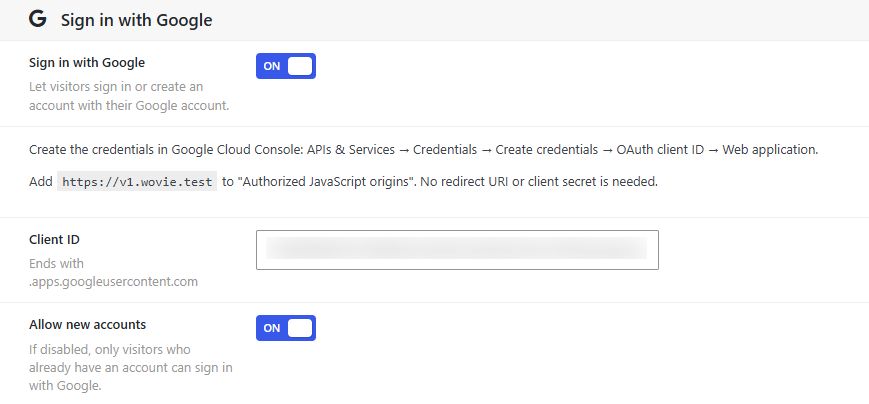
In Dbmovies › Settings › Integrations, section Sign in with Google:
| Setting | What it does | Default |
|---|---|---|
| Sign in with Google | Shows the Google button in the sign-in and sign-up forms | Off |
| Client ID | Your Client ID. Dbmovies checks that it has the right format when you save. Empty hides the button | Empty |
| Allow new accounts | On: a visitor with no account gets one. Off: only visitors who already have an account can sign in with Google, and the button disappears from the sign-up form | On |
Below the switch, the settings show the address to paste in Authorized JavaScript origins.
Check that it works
- Open your sign-in page in a private window.
- Click Continue with Google and choose a Google account.
- You land in the member account, signed in.
How the account is found
Every time someone signs in with Google, Dbmovies looks for their account in this order:
- An account already connected to that Google account. They sign in to it.
- An account with the same email address. The first time, Dbmovies connects it to Google, and they sign in to it. This also completes a sign-up that was started with that email and never confirmed with its code.
- No account:
- With Allow new accounts on, Dbmovies creates one with the name and email from Google, with the role of a regular member. It sends the welcome email, and the visitor lands in their new account.
- With Allow new accounts off, the visitor sees: There is no account with this Google email. Sign up first.
New accounts follow the same rules as the sign-up form. If the Firewall verifies email addresses, a disposable address is rejected, and a blocked IP address cannot sign in with Google either.
The member account
In Account › Settings, members see a Google row with the connected address and the date it was connected.
- To connect Google to an existing account, the member signs in with the Google account that uses the same email as their account. There is no separate connect button.
- Accounts created with Google have no password. Google is their only way in until the member sets a password in their account settings, or with Forgot password. The first password does not ask for a current one. Changing the email of the account also needs a password of their own first.
- To disconnect Google, the member needs a password of their own, and confirms it. From then on, they sign in with their email and password.
[SCREENSHOT_HERE: Account › Settings in Wovie, with the Google row connected and the Disconnect Google form]
What is stored
Dbmovies stores the Google ID of the account, its email, name and photo address, and the date it was connected, in the profile of the user. It does not store any password or access key from Google, and it does not ask for anything else.
Security
- Each sign-in is verified on your server. Dbmovies checks the signature, issuer, recipient (your Client ID), expiry and verified email of the token that Google sends. Each token works once.
- The same limits as the forms apply: after 10 failed sign-ins or new accounts from the same IP address in 15 minutes, Google sign-in pauses for that address. See Firewall.
- Administrators can sign in with Google too, if their email is a Google account. Turn on 2-step verification in that Google account.
Troubleshooting
| Problem | What to do |
|---|---|
| The button does not appear | Check that Sign in with Google is on and the Client ID is saved. In the sign-up form, also check Allow new accounts. If an extension or a network blocks the scripts of Google, the button stays hidden |
| Google shows an error about the origin | The address of your site is missing from Authorized JavaScript origins, or it is written differently. Copy it again from the Dbmovies settings, with https and with or without www as your site uses it |
| Only you can sign in, other visitors get an access error | The app is still in testing. Publish it in the consent screen settings of Google Cloud |
| We could not verify your Google account. Please try again. | The Client ID in Dbmovies does not match the one of the button, or the clock of your server is wrong. Check both. Your server must also be able to reach googleapis.com |
| There is no account with this Google email. Sign up first. | Allow new accounts is off, and no account uses that email |
| This account is already linked to a different Google account. | The account with that email is connected to another Google account. The member signs in with that one, or disconnects it from their account settings |
| Too many requests from your location. Please try again later. | Too many failed attempts or new accounts from that IP address. Wait 15 minutes |
| Google sign-in is not available. | The setting is off or the Client ID is not valid |