Dbmovies
Required pages
Dbmovies and your theme use a few WordPress pages for signing in, the member account and more. This page explains what each required page does, how they are created for you, and how to use your own pages or change their address.
Overview
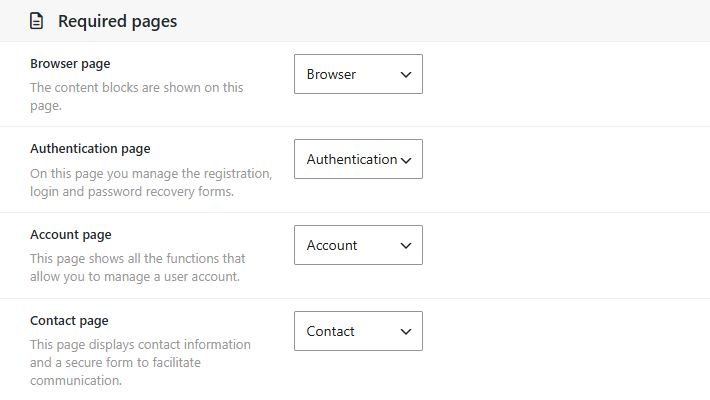
Signing in, signing up and the member account live on regular WordPress pages that use a special page template. You tell Dbmovies which page does what in Dbmovies › Settings › Main settings, section Required pages.
The pages are created for you
When you install Dbmovies with a Doothemes theme such as Wovie active, Dbmovies creates its pages and assigns them on its own:
| Page | Address | Template |
|---|---|---|
| Authentication | /auth/ | User Auth |
| Account | /account/ | User Account |
| Browser | /browser/ | Browser Page |
| Contact | /contact/ | Contact Page |
If you activate a Doothemes theme after Dbmovies, its pages are created at that moment too. If you deleted one of these pages, create it again in Dbmovies › Tools › Restorer › Create and sort required pages. It creates only the pages that are missing and leaves your existing pages as they are. See Restorer.
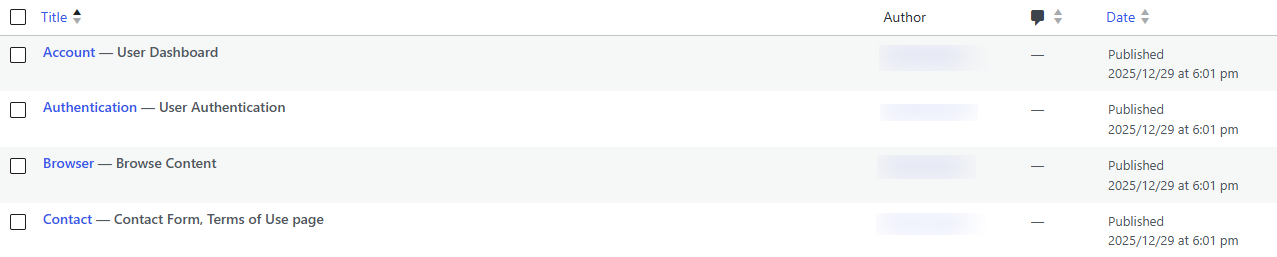
In Pages › All Pages, each assigned page shows a label next to its name, such as User Authentication or User Dashboard, so you know not to delete it.
What each page does
Authentication page
Signing in, signing up and recovering a password. Each form has its own address:
/auth/login/: sign in;/auth/signup/: create an account;/auth/password/: recover a password.
The Sign in and Sign up buttons of your theme, the sign-in link of the comments and the actions that need an account, such as My list, all lead here. Members who are already signed in are sent to their account.
Account page
The member area. With Wovie, it has these sections:
- Overview, My list and Ratings;
- Requests, the titles the member asked for;
- Membership (
/account/plans/), with their plan and payments; - Settings, for their profile and password.
Visitors who are not signed in are sent to the Authentication page. After paying with PayPal, members come back to Membership, and the subscription emails link there too.
Browser page
The content browser of your site: the featured titles and the content blocks, such as genres, recently added and most viewed. With Wovie, it shows the same as the home page.
Contact page
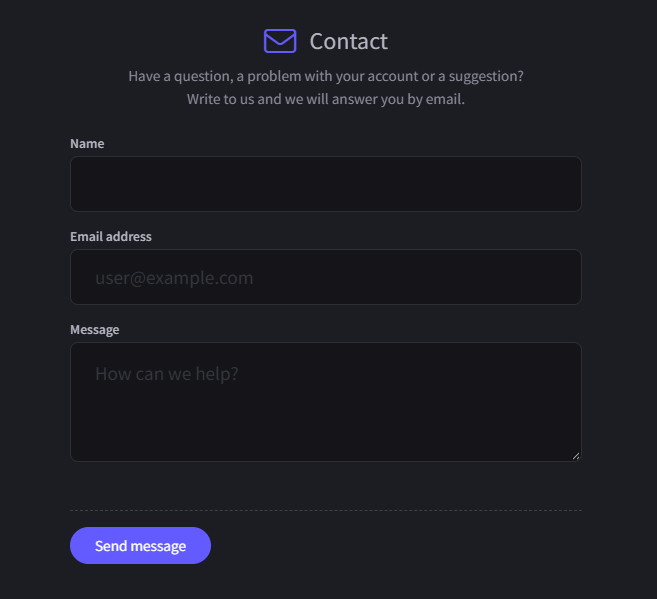
A contact form for your visitors and members. Visitors write their name, email and message, and choose a department if you set any up. Members who are signed in only choose the department and write the message: their name and email come from their account.
- Where messages go. Each message arrives by email, and it is also saved in Dbmovies › Contact, where you read it, answer it and mark it as spam. Replying to the email answers the sender directly.
- Who receives them. Set the address in Dbmovies › Settings › Email › Contact system: a primary address, and one per department. Without a primary address, messages go to the administration email of your site.
- Confirmation. In the same section, you can send the sender a confirmation with the reference code of their message.
- Spam. The form blocks most automated spam on its own. It also limits how many messages one visitor can send in a short time, and it respects the IP blacklist of the Firewall. For more protection, turn on Cloudflare Turnstile.
The text you write in the content of the page shows above the form.
Terms of Use page and Privacy policies page
Optional. Assign the pages with your terms and conditions and your privacy policy, so you keep them identified in Dbmovies. These pages are not created for you: write them as regular pages.
Using your own pages
You can use any page instead of the ones Dbmovies created:
- Create the page in Pages › Add New and give it a title.
- In the page settings, choose its template in Template: User Auth for the Authentication page, User Account for the Account page, Browser Page for the Browser page and Contact Page for the Contact page.
- Publish it.
- Assign it in Dbmovies › Settings › Main settings › Required pages and save.
The template shows the forms and sections on its own: you do not need to add anything to the content of the page.
Each required page only works with its template. A page without it shows its own content, but no forms, sections or content browser.
Changing the address
To change an address, for example from /auth/ to /sign-in/, edit the slug of the page in Pages. All the forms and sections move with it, such as /sign-in/login/. The page can also be a child of another page, such as /members/sign-in/.
Since Dbmovies 1.3.37, the addresses are updated on their own when you change the slug of a page or assign a different one. In earlier versions, go to Settings › Permalinks and click Save Changes afterwards.
Troubleshooting
- Sign in, Sign up or a section of the account shows a 404 page. Go to Settings › Permalinks and click Save Changes. Also check that your site uses pretty permalinks (any option except Plain), and that the page is published and assigned.
- A required page shows no forms or content. Check that the page uses its template: User Auth, User Account, Browser Page or Contact Page.
- A required page was deleted. Restore it from Pages › Trash, or create it again with the Restorer.
- **A form says Invalid security token. Please reload the page and try again., even after reloading.** A page cache is serving an old copy of the page. Dbmovies asks page caches not to store the Authentication, Account and Contact pages; if yours ignores it, exclude those pages from the cache by hand, and clear it.