Dbmovies
Initial settings
The first settings to review after activating your license: your TMDb API key, permalinks, required pages, email delivery and scheduled tasks. Everything else works with safe default values.
Before you start
Dbmovies works with safe default values from the moment you activate it, so you do not need to review every setting. This page covers the few settings that you do need before you start importing and opening your site to visitors.
Activate your license first. Without an active license, Dbmovies does not save changes to its settings. See License activation.
All Dbmovies settings are in Dbmovies › Settings.
1. Add your TMDb API key
This is the setting the importers need. Without it, they cannot retrieve any content.
- Go to Dbmovies › Settings › Data Importer › Initial settings.
- Paste your key in Themoviedb.org API Key. If you do not have one yet, create a free account at themoviedb.org and request an API key in your account settings.
- Review the other settings of this section:
- Language: the language of the titles, synopses and genres you import, for example
en-USores-MX. - Movies, TVShows and Episodes: the status of imported content: Publish (the default), Pending or Draft.
- Publish with release date: uses each title's release date as its publish date, for the content types you check (all of them by default). Decide it before you import, because it affects every title you import and update.
- Language: the language of the titles, synopses and genres you import, for example
- Click Save.
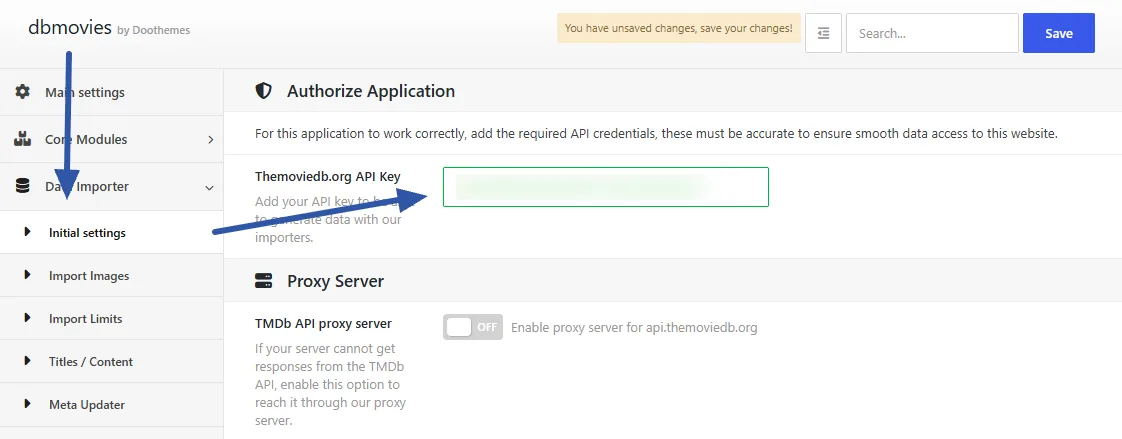
Dbmovies › Settings › Data Importer › Initial settings, with the TMDb API key, Language and the publishing options
If your server cannot reach TMDb, turn on TMDb API proxy server in the same section. Dbmovies then reaches TMDb through the Doothemes server.
To check that everything works, open the importer (the Dbmovies menu) and search for any title. See Importers and Data importer for the rest of the import settings.
2. Permalinks
Dbmovies needs pretty permalinks to build the addresses of movies, TV shows, episodes and the rest of its content.
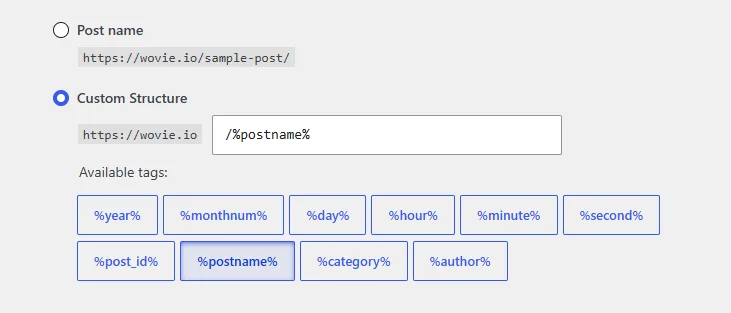
We recommend this setting:
- Go to Settings › Permalinks in your WordPress admin.
- Under Permalink structure, select Custom Structure.
- Enter only
/%postname%, without a slash at the end. - Click Save Changes.
Any other pretty permalink structure also works, but this one gives you the cleanest addresses.
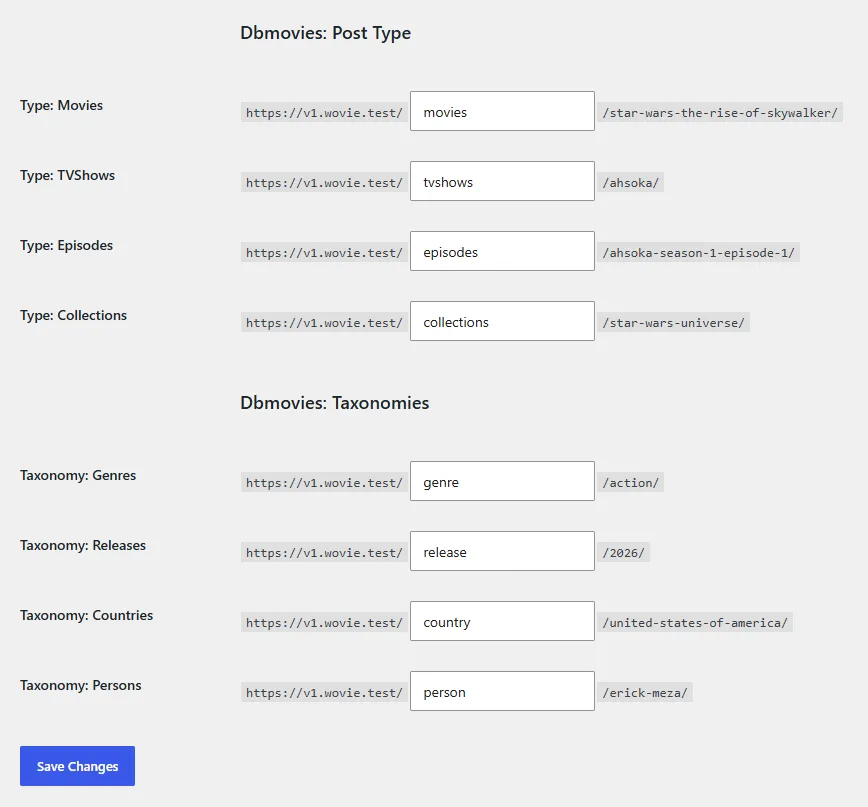
On the same page, the Optional section has a field for each Dbmovies content type and taxonomy. Use them to change the base of their addresses, for example movies in yoursite.com/movies/inception. Change them before you publish your site: changing a base later changes the address of all its content.
3. Required pages
Signing in, the member account, the content browser and the contact form live on WordPress pages. With a Doothemes theme such as Wovie, Dbmovies creates these pages and assigns them on its own, when you install it or when you activate the theme.
Check them in Dbmovies › Settings › Main settings, section Required pages: the Authentication, Account, Browser and Contact pages should each have a page assigned. If one is missing, for example because you deleted it, create it again with Dbmovies › Tools › Restorer › Create and sort required pages. See Required pages.
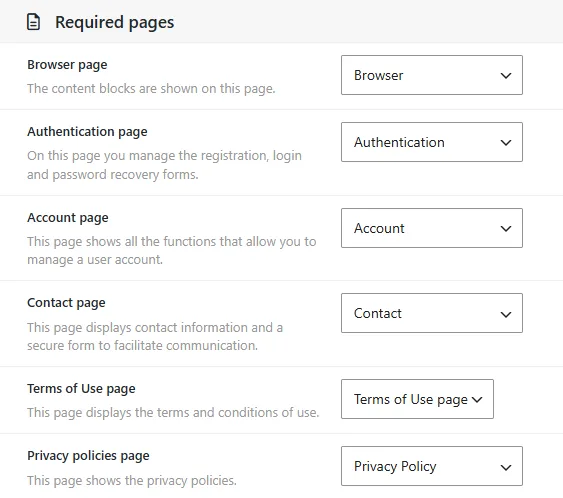
See Required pages for what each page does.
4. Email delivery (SMTP)
Dbmovies sends emails for sign-up codes, password resets, welcome messages and memberships. Sending them through SMTP is far more reliable than the default PHP mail function, which many hosts block or send to spam.
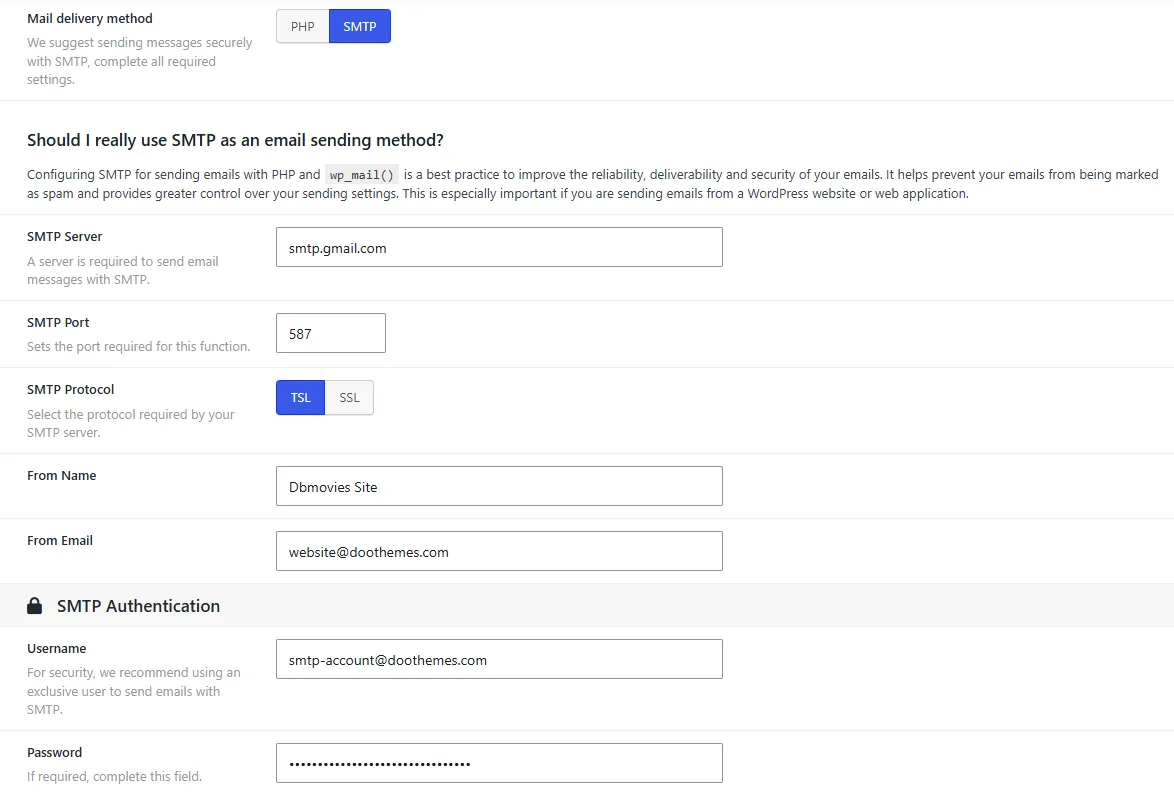
- Go to Dbmovies › Settings › Email › Settings.
- Fill in Outgoing email address and Incoming email address.
- Under Advanced Settings, set Mail delivery method to SMTP.
- Complete the fields with the data of your email provider: SMTP Server, SMTP Port, SMTP Protocol, From Name, From Email, Username and Password.
- Click Save.
To check it, open your site in a private window and create a test account, or request a password reset for an existing account. If the email with the code arrives, your settings are correct. If it does not arrive, check the details with your email provider and make sure your host allows outgoing connections on that SMTP port.
5. Scheduled tasks
Automatic episodes, the Meta Updater and the license checks run as scheduled tasks. WordPress runs scheduled tasks only when someone visits your site, so on a new site with few visits they fall behind.
We recommend a server cron job that calls wp-cron.php every minute. Your host's control panel usually has a "Cron jobs" section for this. See Cron Jobs.
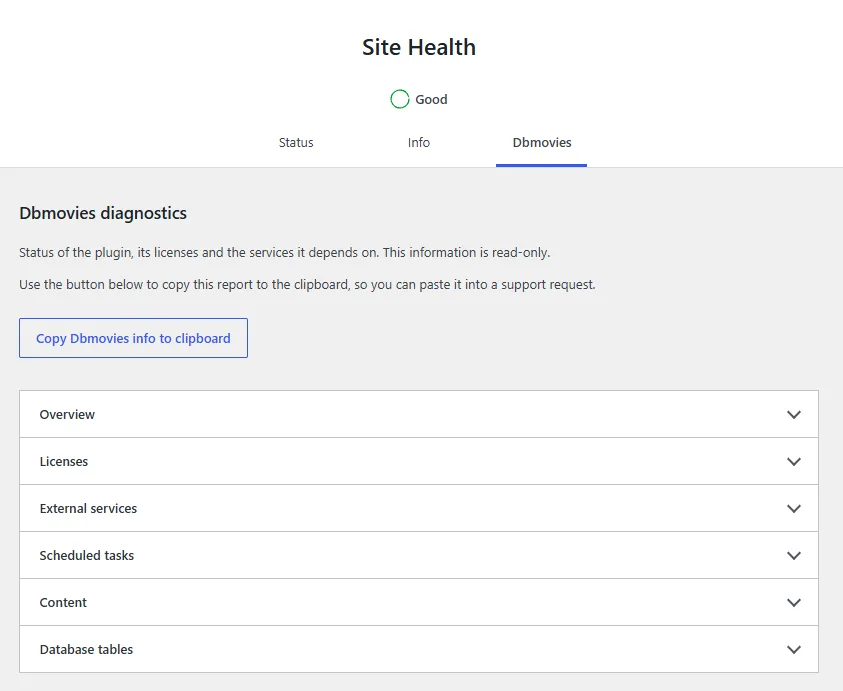
To check that they run on time, go to Tools › Site Health.
Notices and Site Health
Dbmovies shows a notice at the top of your admin in two cases:
- "This copy of Dbmovies is not linked to a license": activate your license in Dbmovies › Updates.
- A database error after an update: the notice shows the error, and Dbmovies tries again on its own. If it continues, contact support with the message.
Tools › Site Health also checks the connection to TMDb, whether scheduled tasks run on time, and your license and its daily requests. Review it after you finish this page.
What to turn on next
These features are optional, and you can turn them on whenever you are ready:
- Automatic episodes: create the episodes of each TV show in the background. Go to Settings › Data Importer › Automatic episodes.
- Auto-Embed: add embed links to every movie and episode from your provider's URL pattern. See Auto-Embed support.
- Memberships with PayPal: charge for premium access. See Subscriptions.
- Firewall: block IP addresses and reject disposable email addresses. See Firewall.
Next step
Your installation is ready. Continue with Importers to bring in your first titles, or with Movies to learn how Dbmovies stores them.